Chapter 3 Writing Tutorial Content
Now that you have your environment set up, let’s learn how to create compelling tutorial content using R Markdown. This chapter covers the essential techniques for writing effective GitBook tutorials.
3.1 Project Structure with .Rmd Files
Each .Rmd file in your project becomes a chapter in your GitBook. The structure is simple:
my-tutorial/
|-- index.Rmd          # Main page (Chapter 0)
|-- 01-chapter1.Rmd    # Chapter 1
|-- 02-chapter2.Rmd    # Chapter 2
|-- 03-chapter3.Rmd    # Chapter 3
`-- ...3.2 Headings Create Sections
Headings automatically create your table of contents and navigation structure:
3.3 Code Chunks: The Heart of R Tutorials
Code chunks are what make R Markdown special. They execute R code and display the results:
3.3.2 Code Chunk Options
Control how your code appears and executes:
```{r your-chunk-name, echo=TRUE, eval=TRUE, fig.cap="Simple Line Plot"}
# echo=TRUE: Show the code
# eval=TRUE: Run the code
# fig.cap: Caption for figures
plot(1:10, 1:10)
```
Here’s the actual chunk in action:
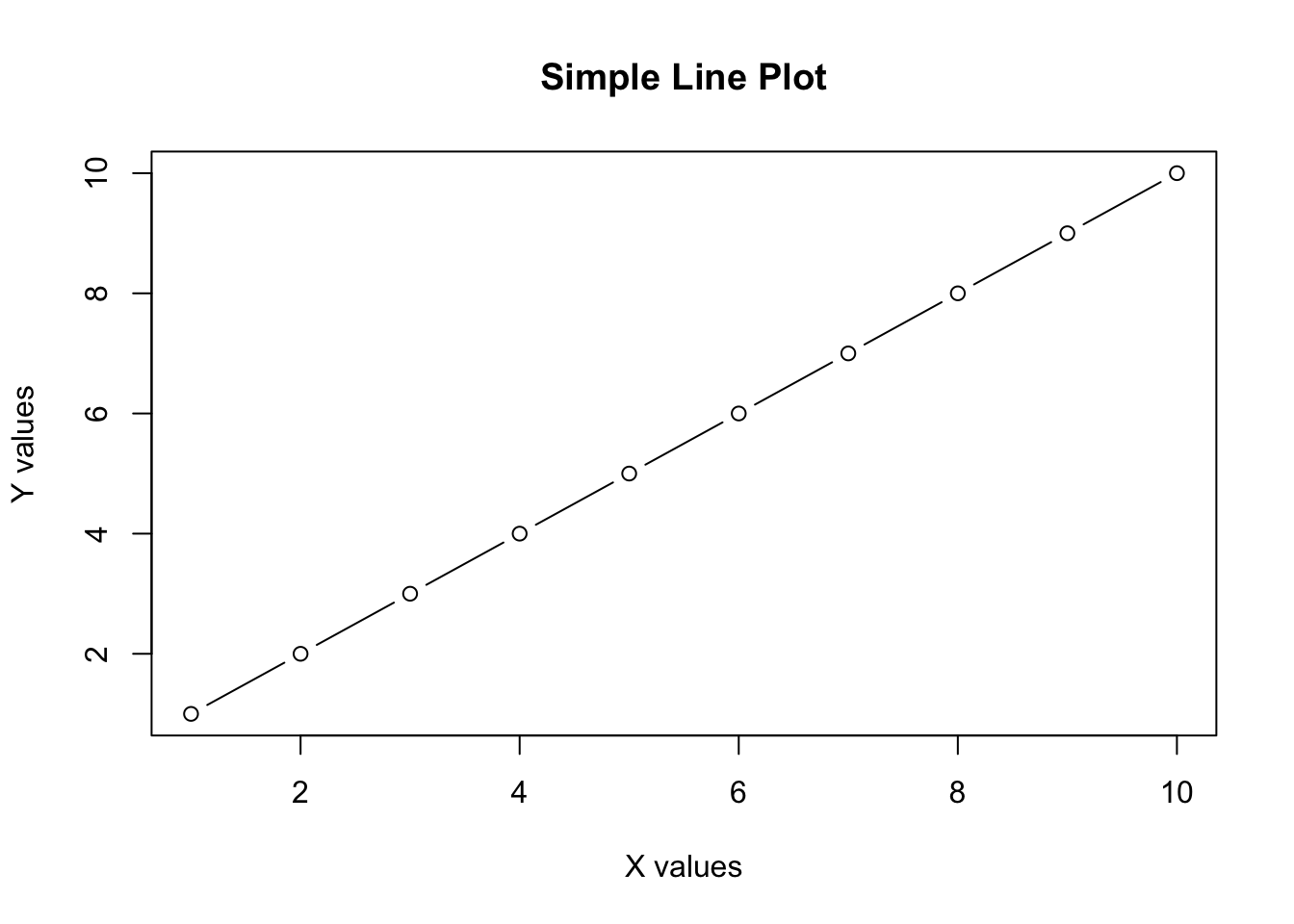
Figure 3.1: Simple Line Plot
Common options:
echo=FALSE: Hide code, show outputeval=FALSE: Show code, don’t run itinclude=FALSE: Run code, don’t show anythingmessage=FALSE: Hide messageswarning=FALSE: Hide warnings
3.4 Creating Plots and Visualizations
R excels at creating beautiful plots:
library(ggplot2)
data(mtcars)

ggplot(mtcars, aes(x = mpg, y = hp)) +
  geom_point(aes(color = factor(cyl))) +
  labs(title = "Horsepower vs MPG",
       x = "Miles per Gallon",
       y = "Horsepower",
       color = "Cylinders") +
  theme_minimal()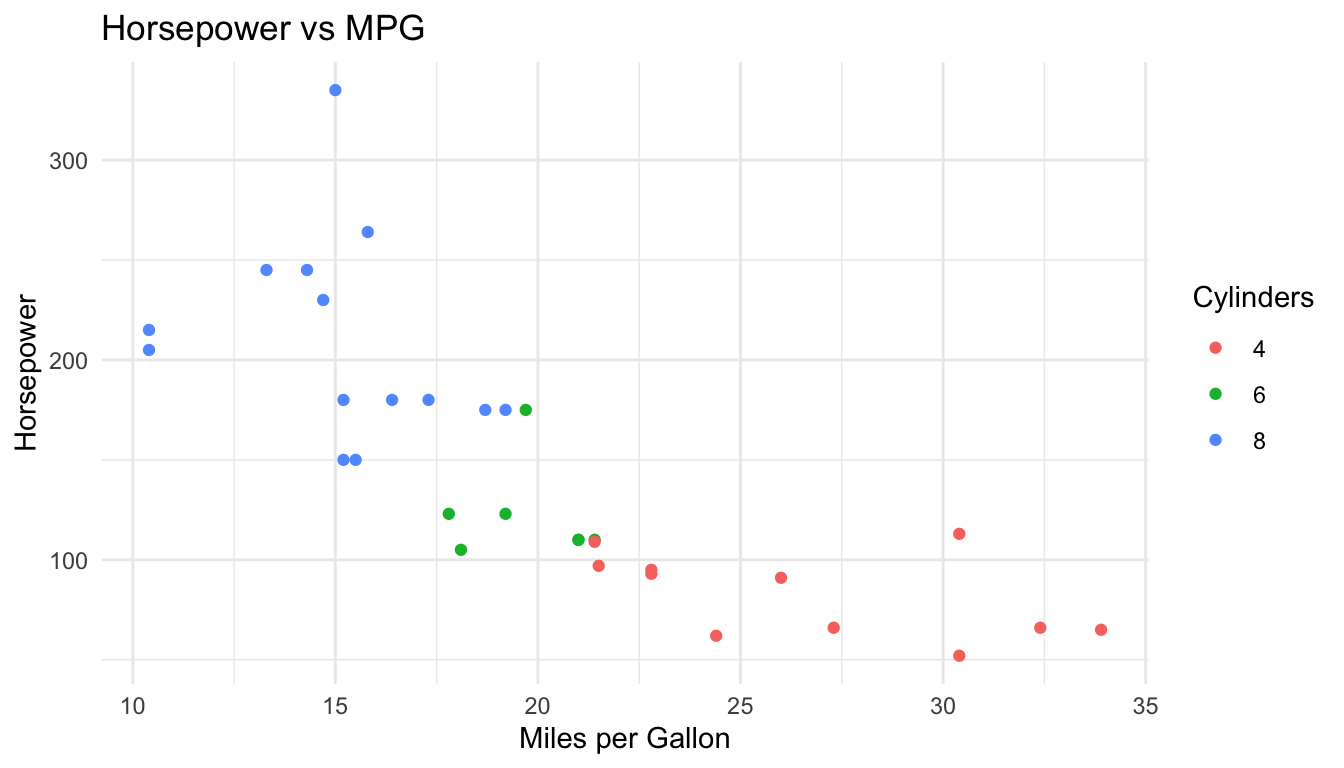
Figure 3.2: Sample Scatter Plot
3.5 Inline R Code
You can embed R results directly in your text using inline code:
The mean of mtcars$mpg is r round(mean(mtcars$mpg), 2) miles per gallon.
The mean of mtcars$mpg is 20.09 miles per gallon.
3.6 Mathematical Notation
LaTeX syntax works beautifully in GitBooks:
3.7 Cross-References and Links
3.7.1 Referencing Figures and Tables
Result: See Figure 3.2 for the scatter plot.
3.7.2 Referencing Sections
Result: As we learned in Chapter 1, GitBook format is powerful.
3.8 Optional Enhancements
3.8.1 Footnotes
Add footnotes for additional information. First, reference the footnote, then define what the footnote reads. Footnotes will be placed at the bottom of the page automatically.
This is the text where the footnote is referenced[^note1].
[^note1]: This is the content of the footnote.
Result:
This is the text where the footnote is referenced1.
(Scroll to the bottom of the page to see the footnote.)
3.8.2 Citations with BibTeX
First, create a references.bib file:
@book{wickham2016r,
  title={R for data science: import, tidy, transform, visualize, and model data},
  author={Wickham, Hadley and Grolemund, Garrett},
  year={2016},
  publisher={O'Reilly Media}
}
Then cite it:
3.8.3 Adding Images
Or with more control:
```{r, fig.cap="My Image", out.width="50%", eval=FALSE}
knitr::include_graphics("path/to/image.png")
```
3.8.4 Callouts and Special Blocks
Create attention-grabbing callouts:
> **Note:** This is an important note that readers should pay attention to.

> **Warning:** Be careful with this command as it might delete files.

> **Tip:** Here's a helpful tip to make your work easier.
Results:
Note: This is an important note that readers should pay attention to.
Warning: Be careful with this command as it might delete files.
Tip: Here’s a helpful tip to make your work easier.